

Your WooCommerce store looks fine to customers, but the admin has become painful. The Orders screen takes ten seconds to load, saving a product hangs, and the dashboard spins every time you open it. If you've been searching for a WooCommerce slow admin fix, the good news is that the admin is usually slow for a small number of identifiable reasons, and most of them are fixable without rebuilding the store.
A slow admin also costs money in ways that are easy to miss. Staff process orders more slowly, product updates get postponed, and a server that struggles with the back office is often one busy sale away from struggling with the front end too.
This guide is the order I work in in my WordPress and WooCommerce development work when I'm asked to speed up a store: find what is slow, fix the database and background tasks, then look at hosting. It is written for store owners who want to understand what a developer will check, and for developers who want a checklist.
Why is the WooCommerce admin slow?#
The storefront and the admin behave very differently. Visitors mostly get cached pages, so the store can feel quick even when the server is struggling. The admin is never cached. Every click runs PHP and database queries in full, so any weakness shows up there first.
The usual causes, roughly in the order I find them:
- Too many or heavy plugins. Each plugin can add database queries, remote API calls and scripts to every admin page.
- A bloated
wp_optionstable. Plugins store data there that loads on every request, including pages you never see. - Orders stored in the old posts tables. Large stores slow down when orders live in the general posts and post meta tables.
- A backlog of background tasks. WooCommerce relies on the Action Scheduler for emails, webhooks and more. A pile of failed or pending actions makes everything heavier.
- No object cache and an old PHP version. These make every database-heavy screen slower than it needs to be.
- Underpowered hosting. Shared hosting with limited PHP workers and slow storage can't keep up with a growing catalogue.
Guessing at this list wastes time. Measure first.
Find the real bottleneck before changing anything#
Take a full backup before you start. Then install the free Query Monitor plugin on a staging copy of the site, or on production for a short test if you have no staging.
Open the slow screen, for example WooCommerce, Orders, and look at three things in Query Monitor:
- Slow queries. It lists queries by time and tells you which plugin or theme triggered each one.
- Queries by component. If one plugin owns most of the query time, you have your first suspect.
- HTTP API calls. Remote requests made while the page loads, for example a plugin checking a licence server, can add seconds by themselves.
Write down the load time and the biggest offenders before you change anything. You will need those numbers to prove each fix helped.
If you know how to read the MySQL side of this, the same measure-first approach I described in the guide to finding slow MySQL queries in Laravel applies here: the slowest total time matters more than any single dramatic query.
Fix 1: Turn on High-Performance Order Storage#
By default, older WooCommerce stores keep orders in WordPress's general posts tables. High-Performance Order Storage (HPOS) moves orders into dedicated tables, which makes order screens and queries faster as the number of orders grows.
You enable it under WooCommerce, Settings, Advanced, Features. Before you do, check that every plugin that touches orders (payments, shipping, invoicing, subscriptions) says it supports HPOS, and run the migration on staging first. WooCommerce can keep both storage locations in sync during a transition, so you can switch back if something breaks. New stores on recent WooCommerce versions use HPOS by default.
Fix 2: Clean up wp_options autoload data#
Every row in wp_options marked as autoload is loaded on every request. Plugins that have been removed often leave large rows behind. To see the biggest ones, run this on a backup or staging database:
SELECT option_name, LENGTH(option_value) AS bytes
FROM wp_options
WHERE autoload IN ('yes', 'on', 'auto', 'auto-on')
ORDER BY bytes DESC
LIMIT 20;
The autoload values differ between WordPress versions, which is why the query lists several. If the total autoloaded size is several megabytes, or a handful of rows dominate it, you have found a real problem. Remove rows that belong to plugins you've uninstalled, and ask the plugin vendor about the rest. Don't delete rows you can't identify.
Expired transients also pile up. You can clear them safely with WP-CLI:
wp transient delete --expiredFix 3: Clear the Action Scheduler backlog#
Go to WooCommerce, Status, Scheduled Actions. If you see thousands of pending or past-due actions, or a long list of failed ones, the scheduler is working against you. Find out what created them: a misconfigured email plugin, a webhook that keeps failing, or a sync job that runs too often.
Fix the source first. If you only delete the backlog, it will come back. Once the cause is gone, you can clear the old completed and failed actions, and WooCommerce will clean up completed ones on its own schedule.
Also check that WordPress's own cron isn't doing heavy work during page loads. On a busy store, it's common to disable the page-load trigger and run a real server cron job instead, which makes the timing predictable and removes the work from visitors' requests.
Fix 4: Cut plugin weight#
Deactivate plugins one at a time on staging and reload the slow screen. When a plugin makes a big difference, ask whether you really need it, whether a lighter one does the same job, or whether a few lines of custom code replace it. This is where a developer earns their fee: replacing three heavy plugins with one small piece of code often speeds up the admin more than any server upgrade.
Watch for plugins that run on every admin page but only matter on one, such as analytics widgets, marketing dashboards and "suggestion" panels. Many have a setting to turn the dashboard widget off.
Fix 5: Add an object cache and update PHP#
A persistent object cache such as Redis stores the results of repeated database lookups, so the admin doesn't repeat them on every click. It matters most on stores with many products, many orders or heavy plugins. I wrote about how to set up caching without serving stale data in the Redis caching architecture article. The invalidation rules there apply to any application, not just Laravel.
Check your PHP version at the same time. WordPress publishes the versions it recommends, and each newer PHP release is generally faster than the one before. Test plugin compatibility on staging, then upgrade.
When the hosting is the problem#
If the plugins are tidy, the database is clean and the admin is still slow, look at hosting. Signs include a low PHP worker limit, slow disk, a database server shared with many other sites, or no ability to install an object cache.
When I worked on the Henceforward WordPress migration, the project covered moving the site to Scaleway with Laravel Forge, strengthening security and tuning the production environment for reliability and performance. Moving to a server you control is not always the answer, but it gives you the options (caching, PHP settings, server-level cron) that cheap shared hosting takes away. For a broader look at stabilising a production setup, see the write-up on fixing an unstable AWS production environment.
When not to keep patching#
Sometimes the honest answer is that the store has outgrown WordPress. If your plugin stack is enormous, you rely on heavy custom logic, or you need real-time inventory and order flows, a custom build may cost less over three years than constant tuning. I compared those trade-offs in Shopify versus custom ecommerce. For most WooCommerce stores, though, the fixes above are enough, and tuning an existing store is exactly the kind of work I take on.
Frequently asked questions#
Why is my WooCommerce admin slow but my storefront fast?#
The storefront is usually served from a page cache. The admin can't be cached, so slow queries, heavy plugins and background tasks only show up there.
Will a caching plugin fix a slow WooCommerce admin?#
Page caching plugins don't help the admin. An object cache can, but it won't fix a bloated options table or a plugin making slow remote calls. Find the cause first.
Is it safe to enable HPOS on a live store?#
Test on staging first and confirm that every order-related plugin supports it. Keep a backup, and use the compatibility mode that syncs both storage locations while you check everything works.
How long does it take to fix a slow WooCommerce admin?#
It depends on the cause. A cleanup of options, transients and scheduled actions can be done quickly. Replacing plugins or moving hosts takes longer and needs testing.
Key takeaways#
- The admin is slow because it can't be cached, so measure it with Query Monitor before you change anything.
- The big wins are HPOS, a clean
wp_optionstable, a cleared Action Scheduler backlog and fewer heavy plugins. - Add an object cache and a current PHP version after the basics, not instead of them.
- If hosting limits you, move to a setup you can tune, and know when a store has outgrown WordPress.
If your WooCommerce admin is holding your team back and you want a senior developer to find the cause, book a free call and we can go through it together.
Share this technical insight with your network
Share to LinkedIn or Facebook with key takeaways, featured media, and direct links.
Case Study: Henceforward WordPress Website Migration, Security & Performance Optimization
Henceforward needed a reliable technical setup for its WordPress website while continuing to evolve its online presence. The project involved migrating the website infrastructure to Scaleway with Laravel Forge, implementing new website pages, strengthening security, and optimizing the production environment for better reliability and performance. The work combined hands-on WordPress development with server configuration and deployment management, ensuring the website was not only updated from a content and UX perspective but also running on a cleaner and more maintainable infrastructure.
Related Technical Articles
View all articles →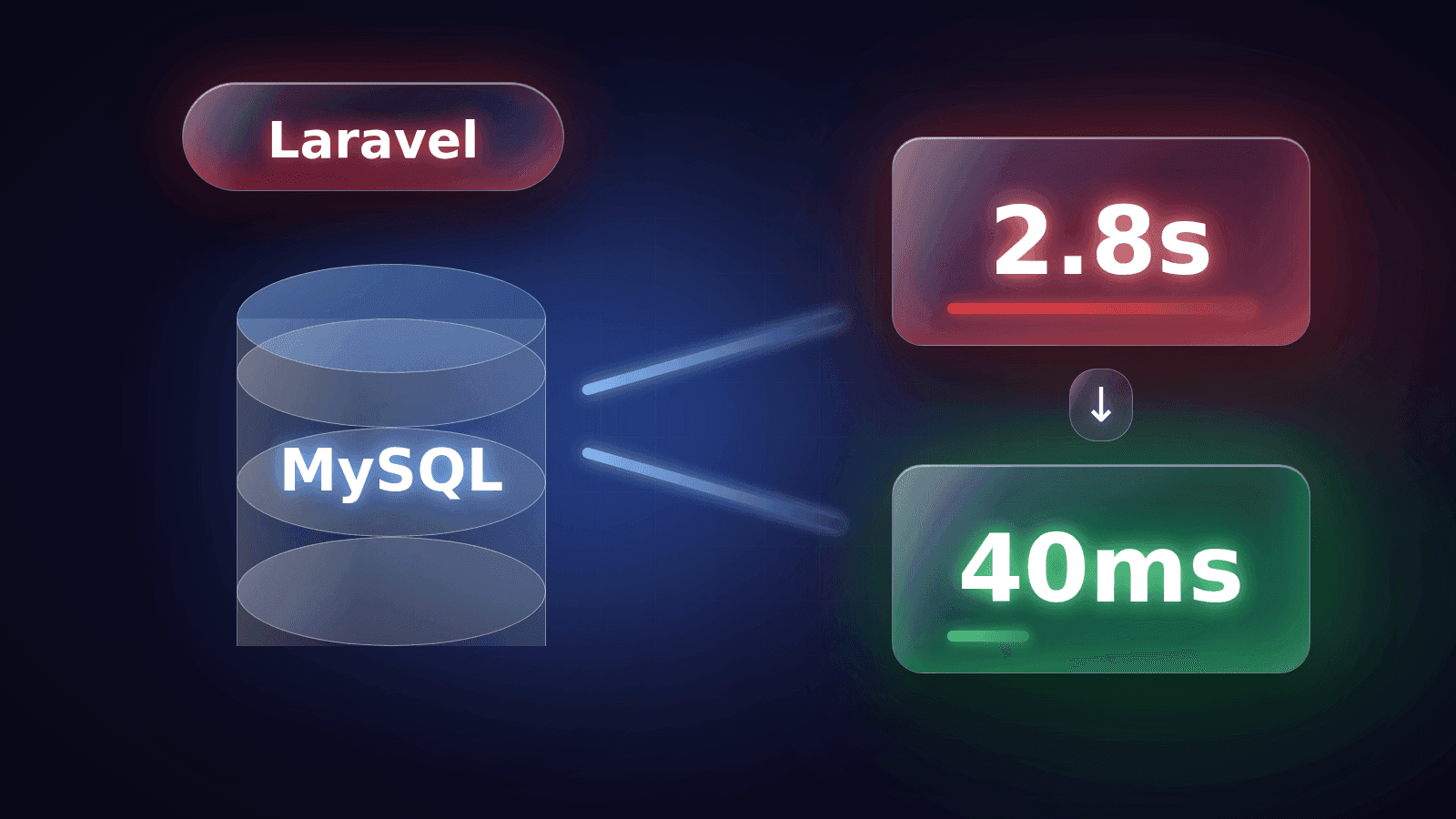
How to Find and Fix Slow MySQL Queries in Laravel
A practical Laravel slow queries fix: how to find the queries that hurt, read what MySQL says about them, and fix the five most common causes with before-and-after proof.
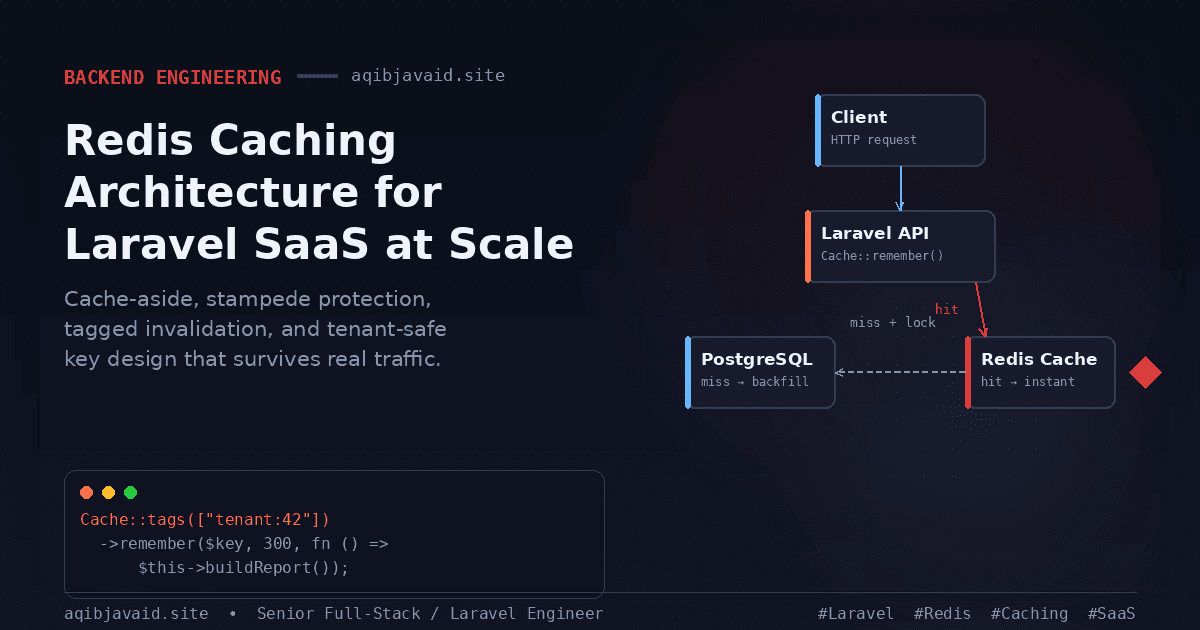
Redis Caching Architecture for Laravel SaaS at Scale
A cache with no invalidation story isn't a performance win. It's stale data waiting to embarrass you in front of a customer.
Shopify vs Custom Ecommerce: When Custom Is Worth It
Shopify or a custom ecommerce build? A plain comparison of cost, control and integrations, the situations where custom pays off, and a three-year cost method plus a checklist to decide.
Next.js vs WordPress for a Business Website: How to Choose
Next.js or WordPress for your business website? A plain comparison of cost, editing, SEO, speed and upkeep, with real project examples and a five-question checklist to decide.
Have a complex technical project in mind?
Available for full-stack engineering, performance audits, cloud deployments, and high-concurrency systems architecture.